Identify the account
Confirm the server and the account being changed. Changing your own password differs from an administrator resetting another account. Domain accounts follow the organisation’s policy.
Change it inside the session
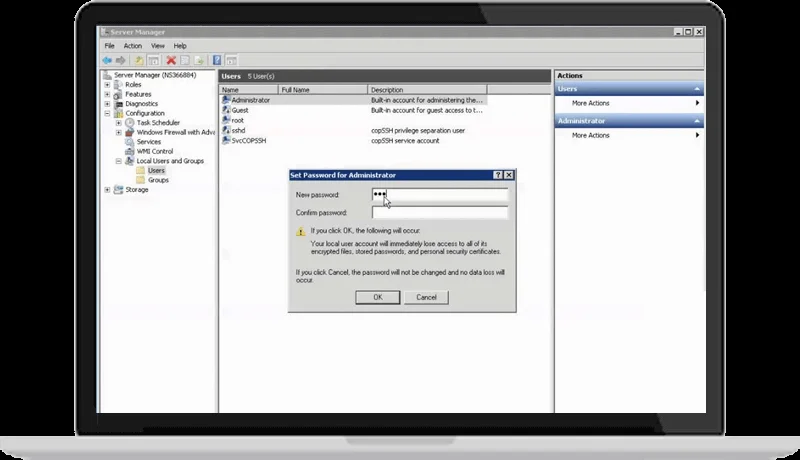
In a Windows Remote Desktop session, Ctrl+Alt+End can open the remote security screen and the password-change option when supported by the client. Enter the old and new passwords according to the account policy and store the result securely.
Check access and services
Update saved credentials and check services or scheduled tasks using that account. Changing a Windows password does not automatically update database or hosting-panel passwords. The original video documents the Windows Server 2016 interface.
Original tutorial video
The video shows the interface at recording time. Menu locations and buttons may differ in your release.
Open the original video ↗Tutorial screenshots
These images belong to the original tutorial; follow the reviewed instructions above where interfaces differ.

References and tutorial links
What does this guide cover?
Change your account password inside a remote Windows session and check policy and dependent credentials.
Do screenshots and videos show the newest interface?
Original media are retained. Interfaces can vary by release; use the reviewed written steps and documentation links.
How can I ask for help with my situation?
Send the service name, release, error message and a description to support. Do not publish passwords or sensitive connection details.