Prepare the connection details
Obtain the server address, username, access method and any custom port from your provider. Confirm Remote Desktop permissions and a trusted access path. Do not disable the firewall or NLA as a routine connection fix.
Open Remote Desktop Connection
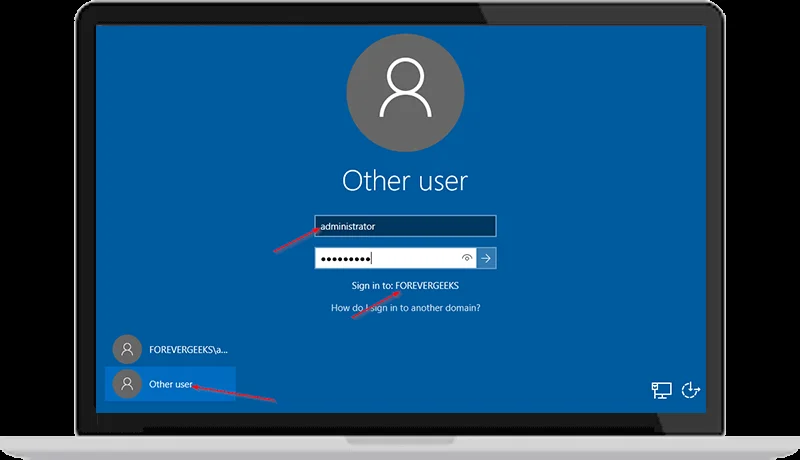
On Windows, open Remote Desktop Connection or run mstsc. Enter the server address and account details. Review the server identity and any certificate warning before proceeding, especially if the address or warning has changed.
If the connection fails
Check the address, port, network and account permissions first. Ask the provider to review access settings and logs if necessary. The original video uses Windows Server 2016, so labels and screens may differ on other releases.
Original tutorial video
The video shows the interface at recording time. Menu locations and buttons may differ in your release.
Open the original video ↗Tutorial screenshots
These images belong to the original tutorial; follow the reviewed instructions above where interfaces differ.

References and tutorial links
What does this guide cover?
Connect to your own Windows server using the correct address, account and access settings.
Do screenshots and videos show the newest interface?
Original media are retained. Interfaces can vary by release; use the reviewed written steps and documentation links.
How can I ask for help with my situation?
Send the service name, release, error message and a description to support. Do not publish passwords or sensitive connection details.